Getting started with Bookmark Hero
Updated 2026-10-22
The short answer: install the extension, switch on a site in the welcome tab it opens, and open that site once while you are signed in. New saves appear on your shelf by themselves, and the first sync walks back through what you already saved. The site’s card under Settings → Modules says what it is doing and what it needs from you.
- Install From the Chrome Web Store. No account.
- Switch on a site One switch per site; the browser asks for that site only.
- Open the site once Signed in, in a normal tab.
- Saves arrive New ones as you browse; old ones through the first sync.
Before you start
- Chrome, or a Chromium browser such as Edge, Brave, Arc, or Opera. Firefox is being tested.
- Be signed in on the sites you want to collect from, in this browser. The extension reads your saves the way each site’s own page does, with the login your browser already has. There is no account to create and no API key to paste.
1. Install
Add it from the Chrome Web Store. A welcome tab opens with one card per site. If you close that tab, the same cards are under Settings → Modules: click the toolbar icon, then Settings.
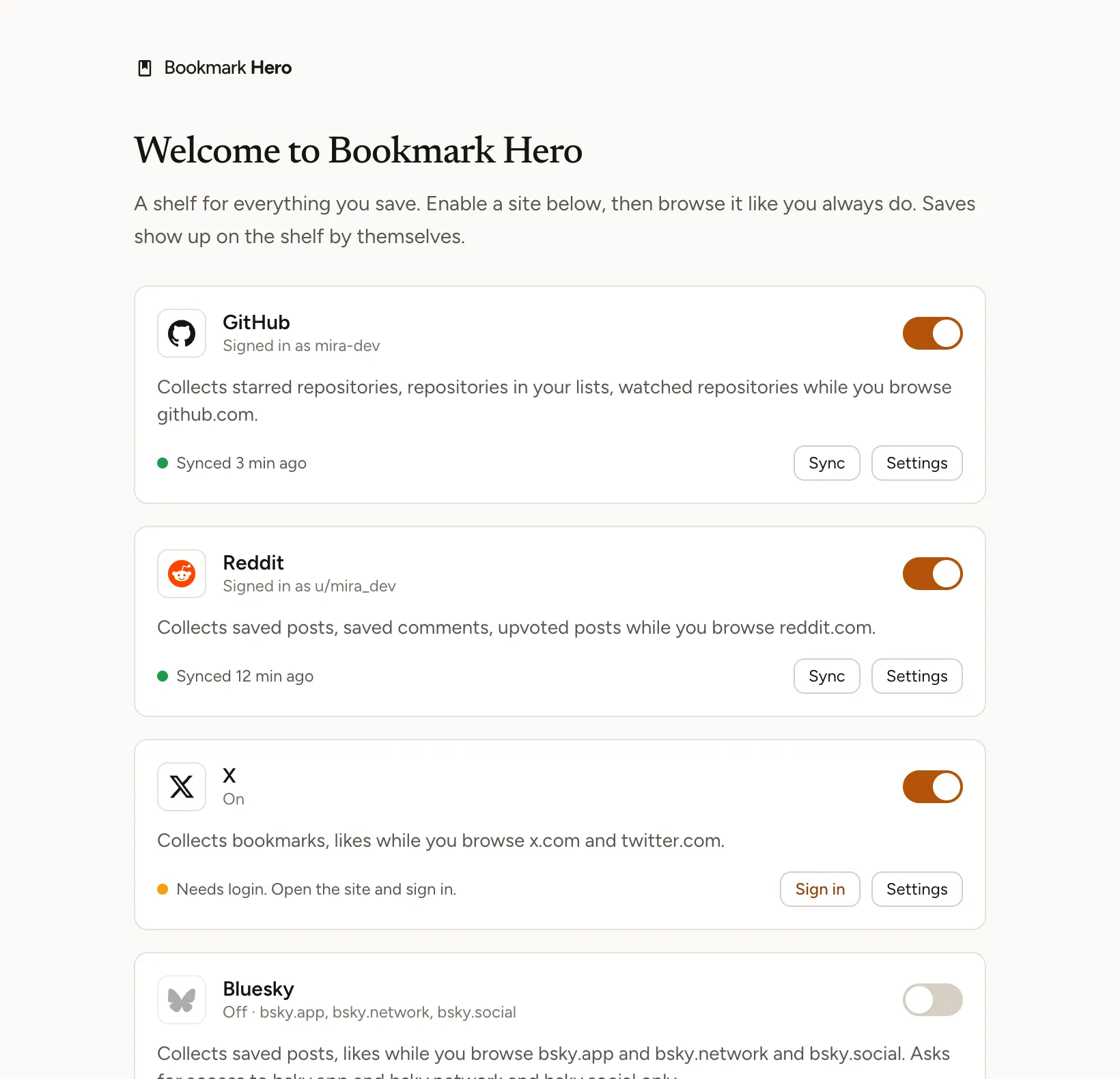
2. Switch on a site
Each card has a switch. The first time you switch a site on, the browser asks whether the extension may read that site. Say Allow. Nothing is granted at install, the extension asks for one site at a time, and switching a site off takes its access away again.
Switch on the sites you actually save on. Each card says what it collects. Some collections stay off until you turn them on in the card’s settings, such as likes on X or the repositories in your GitHub lists; the table below has the full list.
You can also start from the site itself. On a supported site, click the toolbar icon and the popup offers to add that site to your shelf.
3. Open the site once
Visit the site in a normal tab. If you are signed in there, saves start arriving, and the card’s status line goes from “Ready” to “Synced a few minutes ago”.
Two statuses mean the card needs you. “Needs login” means the site has no signed-in account in this browser: press Sign in, which opens the site’s sign-in page, and syncing starts by itself once you are in. “Needs a visit” means the site’s saved page has not been opened here yet: press Open site.

4. The first sync
Press Sync on the card, or just carry on browsing. The first sync starts a history import that walks back through everything you already saved on that site, a page every few seconds, in the background. It keeps going by itself and picks up where it left off the next time you open the site. A few thousand saves take a while on purpose: the site sees ordinary browsing, not a burst. Settings on the card shows the import’s progress and when the shelf was last checked against the site in full.

After that, new saves arrive as you browse. Opening the site runs a quick sync at most once every fifteen minutes; in between, the extension notices saves as the page loads them.
What each site collects
| Site | On by default | In the card’s settings | Good to know |
|---|---|---|---|
| GitHub | Starred repositories | Repositories in your lists, watched repositories | A personal access token with no scopes is optional. It raises GitHub’s limit from 60 to 5,000 requests an hour, which matters for a large history. |
| Saved posts, saved comments | Upvoted posts | Reddit lists your last 1,000 saves. Older ones come in through the card’s import box, from Reddit’s data request. | |
| X | Bookmarks | Likes | Open x.com once after switching it on. A post deleted later keeps its copy on the shelf. |
| Bluesky | Saved posts | Likes | Sign in on bsky.app. |
| YouTube | Liked videos, Watch later | — | Sign in to your Google account on youtube.com. |
| Dev.to | Reading list | — | Sign in on dev.to. |
| Mastodon | Bookmarks | Favourites | Name your instance first; see below. |
| Saved posts | Syncing on its own | Records the saved posts you open. LinkedIn restricts software access to its site, so syncing on its own is off until you turn it on. | |
| Browser bookmarks | Bookmarks | Reading list | Asks for the browser’s bookmarks permission, not a site. Nothing to sign in to. |
| Saved pages | Always on | — | Any page you add yourself: the popup’s Save button, Alt+Shift+S (Option+Shift+S on a Mac), or “Save page” and “Save link” in the right-click menu. |
Three sites that differ
Mastodon
There is no single mastodon.com, so the card asks which instance you are on. Type its address, such as mastodon.social or hachyderm.io, press Save, and the switch becomes available. It asks for access to that instance only. A second account on another instance is a later addition.

Browser bookmarks
This one has no site. The browser asks for its bookmarks permission instead of site access, your existing bookmarks come onto the shelf, and changes follow as you make them. Switching it off releases the permission.
By default the card records the saved posts you open on LinkedIn, and nothing more. If you want it to fetch your saved list, turn syncing on in the card’s settings. It goes slowly, ten posts a page, because LinkedIn limits what software may read.
What the status line means
| The card says | What it means | What to do |
|---|---|---|
| Ready, or Synced 12 min ago | Working. | Nothing. |
| Needs login. Open the site and sign in. | No signed-in account for this site in this browser. | Press Sign in. Syncing starts by itself once you are in. |
| Open your saved items on the site once so syncing can start. | The site’s saved page has not been opened here yet. | Press Open site. |
| Rate limited. Retrying in about 15 min. | The site asked for a pause. | Nothing. It retries after the wait. |
| The site changed. Update Bookmark Hero when a fix ships. | The site changed its pages and the extension could not read them. | Updates arrive by themselves from the store. Your shelf is untouched meanwhile. |
| Site access was revoked. Grant it again. | The browser took the site permission away. | Switch the site off and on again. |
Pressing Sync within fifteen minutes of the last one says “Synced a moment ago; nothing to do yet.” That is the pace, not a fault. If every card says syncing is paused, the “Pause all active syncing” box in the Modules tab is ticked.
Finding things again
Open the shelf with Ctrl+Shift+K (⌘+Shift+K on a Mac), or type bh and a space in the address bar to search from there. The toolbar popup searches too, with a preview beside the results. Search matches inside words, so part of a word is enough; quotes make a phrase. Filters narrow it down: module:reddit, tag:rust, folder:reading, has:media, after:2026-01.
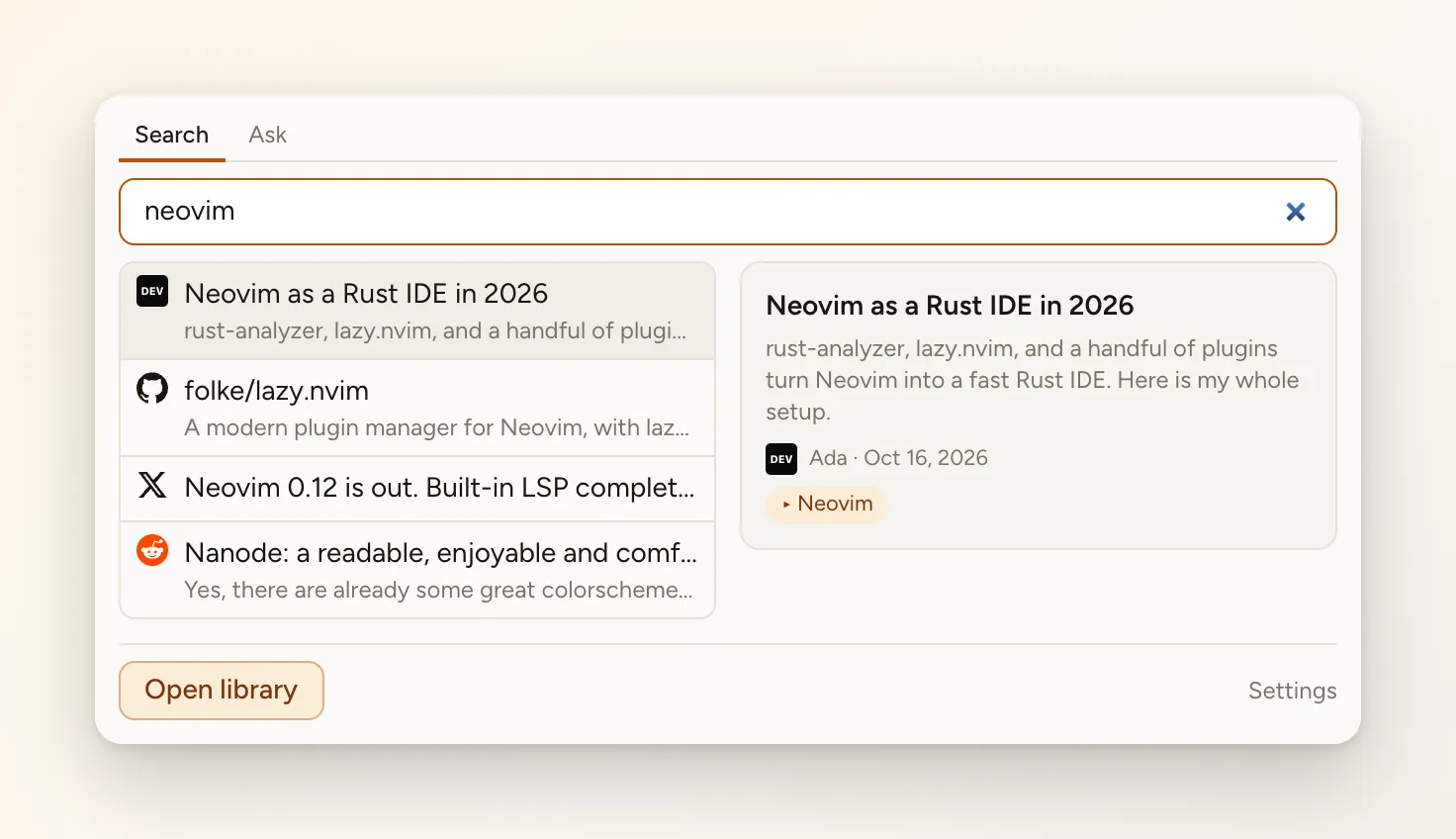
Where your saves live
In your browser’s extension storage, on this computer. There is no account and nothing is sent to a server. Settings → Storage shows how much space the shelf uses and exports all of it as CSV, JSON Lines, Markdown, or Bookmarks HTML, built in your browser. A passphrase lock, also under Storage, encrypts the shelf and its pictures at rest. Switching a site off keeps its saves on the shelf; only “Delete permanently” on an item erases a copy. The privacy page has the whole picture.
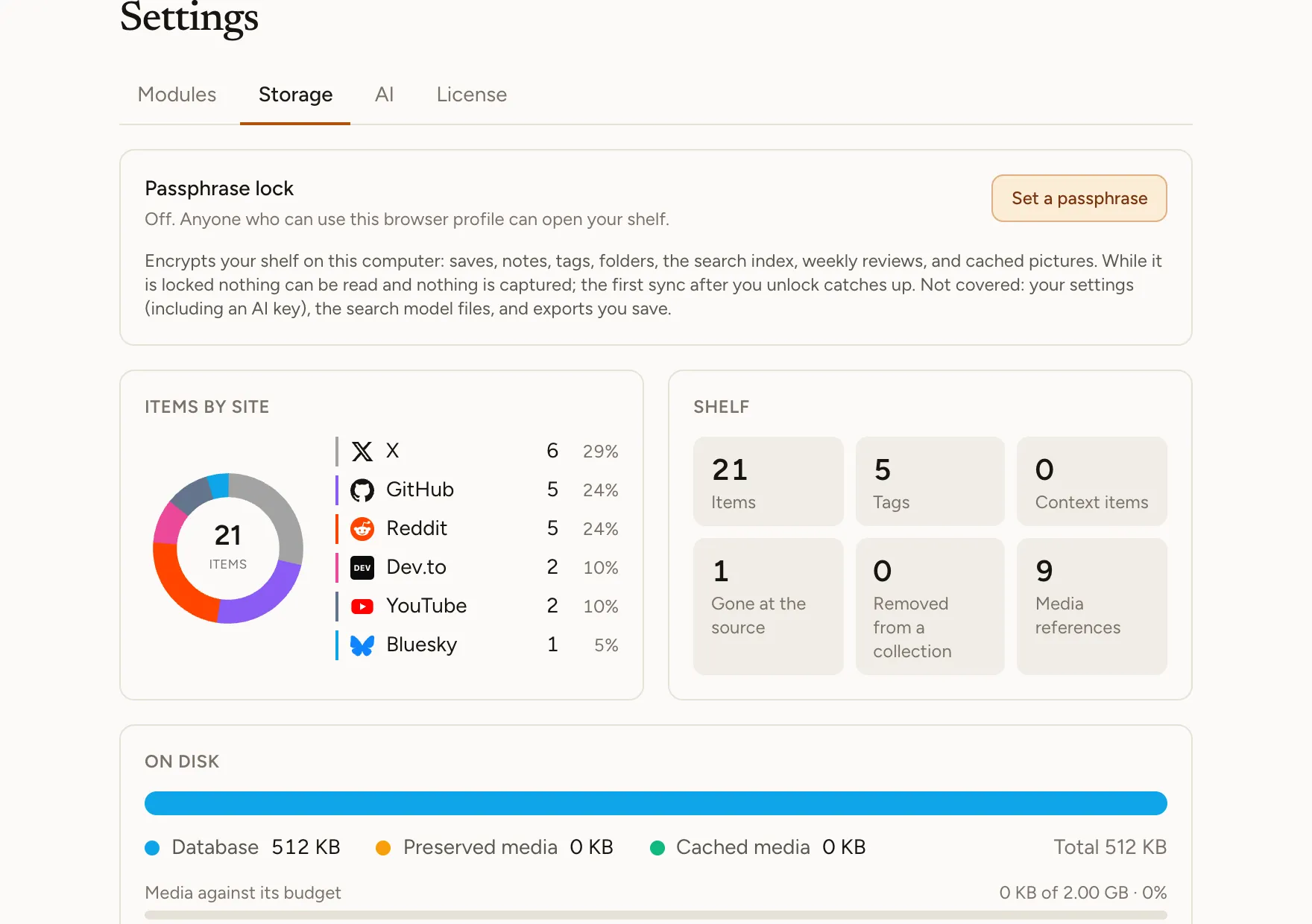
AI, if you want it
Tags, summaries, and filing are free with a model on your own machine (Ollama, LM Studio, Jan, LocalAI, llama.cpp, or vLLM) or your own Anthropic or OpenAI key, under Settings → AI. Bookmark Hero AI does the same with nothing to set up: 1,500 items a month with the Librarian, or a one-time Shelving pass (2,000 items of Bookmark Hero AI for $4, once) with no subscription. The Librarian also adds search by meaning, Ask your shelf, and capture the moment you click. Seven days with the Librarian, no card, from the same tab. What it costs.
Questions
Do I need an account?
No. There is nothing to create and nothing to sign in to, apart from the sites themselves.
Does it change anything on the sites?
No. It only reads. Removing something from the shelf does not unsave it on the site, and un-saving on the site does not delete your copy.
Nothing is showing up. What now?
Open the site once in a normal tab while signed in, then read the card’s status line. “Needs login” and “Needs a visit” each have a button that does the next step. If the status says it is working and the shelf is still empty, press Sync and give it a minute.
How long does the first import take?
It depends on how much you saved. It goes a page every few seconds, in the background, and carries on across visits. A few hundred saves are a matter of minutes; a few thousand take an afternoon of normal browsing.
Can I use it in two browsers?
Each browser keeps its own shelf. Switch the same sites on in each and both fill up. A Librarian licence covers three browsers at a time.
What does switching a site off do?
The extension stops reading the site and gives its access back to the browser. The saves already on your shelf stay there.